7 Common Shopify Performance Issues That Are Killing Your Sales (And How to Fix Them Fast)
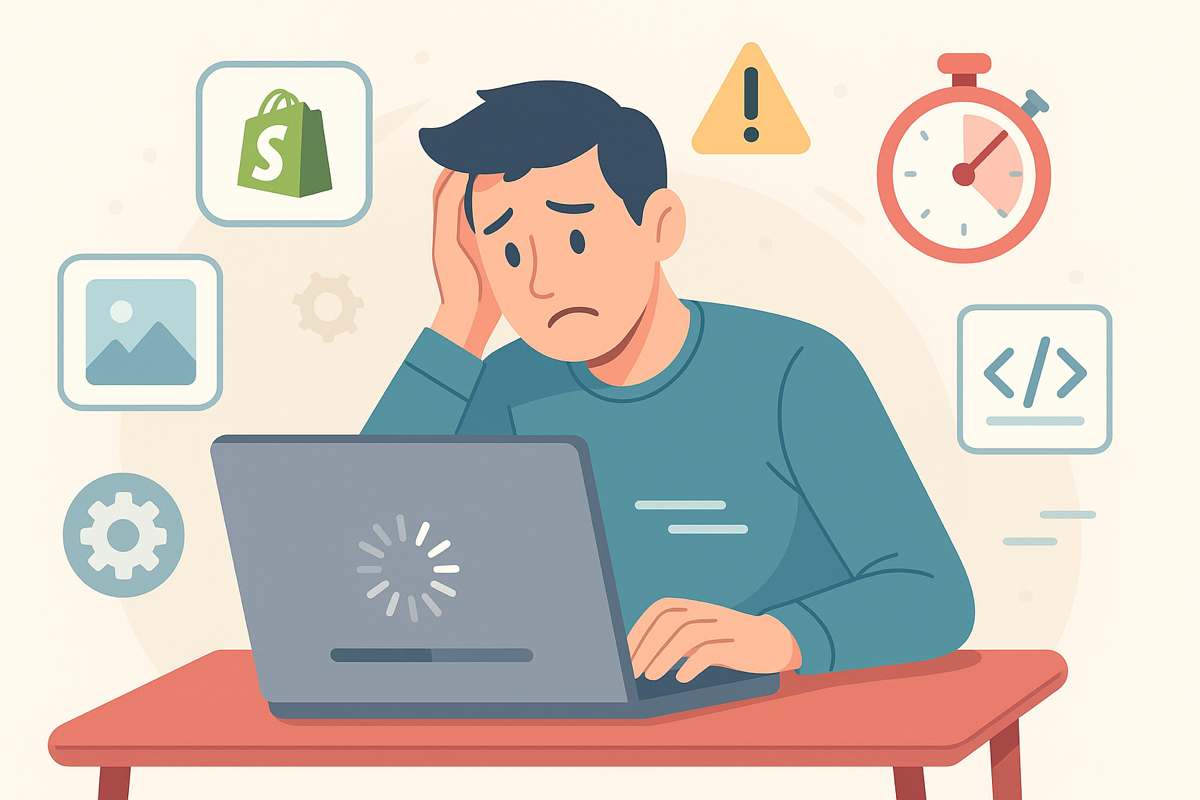
Did you know that a 1-second delay in page load time can reduce conversions by 7%? If your Shopify store takes more than 3 seconds to load, you’re literally watching potential customers—and revenue—disappear before your eyes.
Here’s the harsh reality: In 2025, online shoppers have zero patience for slow websites. Amazon found that every 100ms of latency costs them 1% in sales. For a typical Shopify store doing $100K annually, that could mean losing $1,000+ per month to performance issues alone.
But here’s the good news—most Shopify performance problems are surprisingly easy to fix once you know what to look for. As certified Shopify Experts at Speed Boostr, we’ve diagnosed and fixed performance issues for hundreds of stores, and we’ve identified the 7 most common culprits that are likely slowing down your site right now.
🚀 Need immediate help? Our Shopify performance experts can audit your store and get started on implementing these fixes within 1-2 days. See our speed optimization plans →
Why Shopify Performance Issues Are More Critical Than Ever
Before we dive into the specific issues, let’s talk about why this matters more in 2025 than it did even two years ago:
- Core Web Vitals are now a Google ranking factor – Slow sites rank lower in search results
- Mobile users represent 60%+ of ecommerce traffic – And mobile users are even less patient with slow sites
- Competition is fiercer – Your competitors with faster sites are capturing customers you’re losing
- Ad costs are higher – You can’t afford to waste paid traffic on a slow experience
The bottom line? Every millisecond matters. Let’s identify what’s slowing you down and fix it.
1. App Overload: The Hidden Performance Killer
The Problem: The average Shopify store has 6-10 apps installed, and many store owners don’t realize that each app typically adds 50-200KB of code to every page load. Even worse, apps you’ve “uninstalled” often leave behind JavaScript, CSS, and tracking pixels that continue to slow down your site.
We recently audited a store that had remnants from 23 different apps they thought they had removed. These leftover scripts were adding 3.2 seconds to their page load time!
How to Diagnose App Bloat:
- Go to your Shopify admin → Apps → Manage private apps
- Check your theme’s
theme.liquidfile for app-related code - Use Chrome DevTools Network tab to see which scripts are loading
- Look for apps loading on pages where they’re not needed
The Fix:
- Audit ruthlessly: Remove any app that doesn’t directly contribute to revenue or essential functionality
- Clean up leftover code: Search your theme files for references to old apps and remove them
- Use conditional loading: Only load apps on pages where they’re actually needed
- Combine functionality: Replace multiple single-purpose apps with one comprehensive solution when possible
💡 Expert Tip: We’ve helped stores reduce their app footprint by 60%+ without losing functionality. Let us audit your apps →
2. Image Optimization: The Low-Hanging Fruit Everyone Ignores
The Problem: Images typically account for 60-80% of a webpage’s total size, yet most Shopify store owners upload images straight from their camera or designer without any optimization. We regularly see stores with 5MB+ product images that could be 200KB without any visible quality loss.
Here’s a real example: One client was uploading 8MB product photos. After optimization, we reduced them to 150KB each—a 98% reduction with no perceptible quality difference. Their product pages went from 12-second load times to under 2 seconds.
The Complete Image Optimization Strategy:
Step 1: Format Selection
- WebP format: Use for all new images (30% smaller than JPEG with same quality)
- JPEG: For photographs with fallback support
- PNG: Only for images requiring transparency
- SVG: For icons and simple graphics
Step 2: Compression
- Compress all images before uploading using tools like TinyPNG or Crush Pics
- Aim for under 100KB per image for product photos
- Use 80-85% quality setting for JPEG images
Step 3: Responsive Images
- Use Shopify’s built-in responsive image system
- Implement proper
srcsetattributes - Serve appropriately sized images for each device
Pro tip: Shopify’s image transformation URLs can resize images on-the-fly. Instead of uploading multiple sizes, upload one high-quality image and use URL parameters to resize as needed.
3. JavaScript and CSS: The Rendering Blockers
The Problem: By default, JavaScript and CSS files block your page from rendering until they’re fully downloaded and processed. This means visitors see a blank screen while your scripts load—and in today’s mobile-first world, that’s conversion suicide.
The most common culprits we see:
- Third-party marketing scripts loading synchronously
- Unused CSS from theme frameworks
- JavaScript libraries loading before they’re needed
- Inline scripts scattered throughout the HTML
The Fix: Strategic Resource Loading
Critical CSS Inlining
Inline the CSS needed for above-the-fold content directly in your HTML head. This ensures the visible portion of your page renders immediately while other styles load asynchronously.
JavaScript Optimization
- Defer non-critical scripts: Use
deferattribute for scripts that don’t need to run immediately - Async third-party scripts: Load analytics, chat widgets, and social media scripts asynchronously
- Remove unused JavaScript: Many themes include jQuery and other libraries that aren’t actually used
CSS Optimization
- Remove unused CSS rules
- Minify all CSS files
- Use CSS preloading for important stylesheets
⚡ Speed Boost: Proper JavaScript and CSS optimization can improve your Largest Contentful Paint (LCP) by 40%+. Get professional optimization →
4. Lazy Loading: Why Your Images Load When Nobody Sees Them
The Problem: Without lazy loading, your browser attempts to download every image on a page immediately—even images that are far below the fold and may never be seen by the visitor. For product collection pages with 50+ images, this can add 10+ seconds to initial load time.
Lazy loading is now supported natively in all modern browsers, yet many Shopify themes still don’t implement it properly.
Implementing Effective Lazy Loading:
Native Lazy Loading
Add loading="lazy" to all images except those above the fold:
<img src="product.jpg" loading="lazy" alt="Product name">Advanced Lazy Loading
- Intersection Observer API: For more control over when images load
- Placeholder images: Show low-quality placeholders while high-res images load
- Progressive loading: Load images based on user behavior and connection speed
What to Lazy Load:
- Product images on collection pages
- Blog post images
- Review photos and user-generated content
- Secondary product images in galleries
What NOT to Lazy Load:
- Hero images or banners above the fold
- Logo and navigation images
- First product image on product pages
- Critical UI elements
5. Theme Bloat: When “Feature-Rich” Becomes “Performance-Poor”
The Problem: Many popular Shopify themes are built to showcase every possible feature, loading dozens of unused CSS files, JavaScript libraries, and template options. We’ve seen themes that load 500KB+ of CSS when the store only uses 50KB worth of styles.
Common theme bloat issues include:
- Loading entire CSS frameworks (like Bootstrap) when only using 10% of the code
- Including multiple slider libraries for different sections
- Loading fonts and icons that aren’t used
- Template files for sections that aren’t enabled
- Outdated code practices and inefficient selectors
Theme Optimization Strategies:
Code Audit and Cleanup
- Remove unused template files and sections
- Eliminate duplicate CSS rules and consolidate styles
- Remove unused JavaScript libraries and plugins
- Optimize CSS selectors for better performance
Asset Management
- Combine multiple CSS files into one where possible
- Use CSS and JavaScript minification
- Implement proper asset versioning for caching
- Remove development and debugging code from production
When to Consider a New Theme
Sometimes the best solution is switching to a performance-optimized theme. Consider this if:
- Your current theme hasn’t been updated in 12+ months
- Code cleanup would require extensive development time
- The theme architecture is fundamentally inefficient
- You’re not using 80%+ of the theme’s features
6. Font Loading: The Typography Performance Trap
The Problem: Custom web fonts can add significant load time and cause “flash of invisible text” (FOIT) or “flash of unstyled text” (FOUT) while fonts download. Poor font loading can delay your First Contentful Paint by 2+ seconds.
Common font loading mistakes:
- Loading fonts from third-party services without preloading
- Using multiple font weights and styles unnecessarily
- Not defining font fallbacks properly
- Loading icon fonts when SVGs would be more efficient
Font Optimization Best Practices:
Strategic Font Selection
- Limit font families: Stick to 1-2 font families maximum
- Choose essential weights: Usually regular (400) and bold (700) are sufficient
- Consider system fonts: They load instantly and look native on each device
Loading Optimization
- Self-host fonts: Host font files on your domain for better control
- Preload critical fonts: Add
<link rel="preload">for above-the-fold text - Use font-display swap: Show fallback text immediately while custom fonts load
- Subset fonts: Only include characters you actually use
<link rel="preload" href="/fonts/main-font.woff2" as="font" type="font/woff2" crossorigin>7. Third-Party Scripts: The Conversion Tracking Performance Tax
The Problem: The modern ecommerce store loads an average of 15+ third-party scripts: Google Analytics, Facebook Pixel, Klaviyo, chat widgets, review apps, and more. Each script adds load time, and some can block page rendering entirely.
We recently audited a store loading 23 different tracking scripts, adding 4.7 seconds to page load time. The kicker? Half of those scripts weren’t even being used for active campaigns.
Third-Party Script Optimization:
Script Audit
List every third-party script currently loading on your site:
- Marketing pixels (Facebook, Google, TikTok, Pinterest)
- Analytics tools (Google Analytics, Hotjar, Crazy Egg)
- Email marketing (Klaviyo, Mailchimp, Privy)
- Customer service (Intercom, Zendesk Chat, Gorgias)
- Reviews and social proof (Judge.me, Yotpo, Loox)
Loading Strategy
- Delay non-essential scripts: Load marketing pixels after user interaction
- Use Google Tag Manager: Consolidate and control script loading timing
- Implement script priorities: Load conversion-critical scripts first
- Remove unused scripts: Audit monthly and remove scripts for inactive campaigns
Advanced Optimization
- Server-side tracking: Move some tracking to server-side to reduce client load
- Script combining: Combine multiple similar scripts where possible
- Conditional loading: Only load scripts on relevant pages
🎯 Conversion Boost: Proper third-party script optimization can improve page speed by 30%+ while maintaining all your tracking capabilities. Optimize for conversions →
Free Tool: Diagnose Your Store’s Performance Issues
Want to see exactly which of these issues are affecting your store? Use our free Shopify Performance Analyzer tool. It will:
- Identify specific performance bottlenecks on your site
- Provide a priority-ranked list of issues to fix first
- Give you before/after performance predictions
- Generate a custom optimization roadmap for your store
🔍 Analyze Your Store Performance (Free) →
The ROI of Fixing These Performance Issues
Let’s talk numbers. Here’s what our clients typically see after implementing these fixes:
- 40-60% improvement in page load speed
- 15-25% increase in conversion rate
- 20-30% boost in organic search traffic (thanks to better Core Web Vitals)
- 35-50% reduction in bounce rate
- Improved ad performance and lower cost-per-click
For a store doing $50K/month, a 20% conversion increase means an extra $10K monthly—$120K annually. Even if professional optimization costs $5K, the ROI is 2,400% in the first year alone.
Performance Monitoring: Staying Fast Long-Term
Fixing these issues once isn’t enough—you need ongoing monitoring to catch new problems before they impact your revenue:
Essential Monitoring Tools:
- Google PageSpeed Insights: Monthly Core Web Vitals checks
- GTmetrix: Detailed performance reports with historical data
- Google Search Console: Core Web Vitals report for SEO impact
- Real User Monitoring (RUM): Actual user experience data
Monthly Performance Checklist:
- Review newly installed apps for performance impact
- Check for theme updates and test performance after updates
- Audit third-party scripts and remove unused ones
- Compress and optimize new images
- Monitor Core Web Vitals scores and trends
When to Get Professional Help
While some of these optimizations can be DIY projects, others require technical expertise to implement safely without breaking functionality. Consider professional help if:
- You’re not comfortable editing theme code
- Your store has extensive customizations
- You need optimization completed quickly (professional teams can often get started within 1-2 days)
- You want to ensure maximum performance gains without risking your store’s functionality
As certified Shopify Experts, we’ve optimized hundreds of stores and have the tools and experience to implement these fixes safely and effectively.
Frequently Asked Questions
How long does it take to implement these performance fixes?
For a typical store, implementing all 7 fixes takes 8-12 hours of development time. If you’re doing it yourself, expect to spread this over several days. Professional optimization services can usually get started within 1-2 days and complete everything efficiently.
Will these changes affect my store’s design or functionality?
When implemented correctly, these optimizations should be invisible to your customers—they’ll just notice your site loads faster. However, improper implementation can break features, which is why many store owners choose professional optimization.
How much should I expect my page speed to improve?
Most stores see 40-70% improvements in load time after addressing these 7 issues. Stores with the most problems often see the biggest gains—we’ve had clients go from 8-second load times to under 2 seconds.
Do I need to fix all 7 issues, or can I prioritize some over others?
For maximum impact, we recommend this priority order: 1) Image optimization, 2) App cleanup, 3) JavaScript/CSS optimization, 4) Lazy loading, 5) Theme cleanup, 6) Font optimization, 7) Third-party script optimization.
How often should I audit my store’s performance?
We recommend monthly performance checks, with more thorough audits quarterly. Any time you install new apps, update your theme, or make significant changes, run a performance test.
What’s the difference between PageSpeed score and actual load time?
Google PageSpeed Insights gives you a score based on various factors, but what matters most is real-world load time for your actual visitors. Focus on metrics like Largest Contentful Paint (LCP) and First Input Delay (FID) rather than just the overall score.
Take Action: Don’t Let Speed Kill Your Sales
Every day you delay fixing these performance issues is another day of lost revenue. While your slow site frustrates potential customers, your competitors with faster sites are capturing those sales.
The good news? These problems are completely fixable, and the ROI is enormous. Whether you tackle them yourself or work with experts, the important thing is to start now.
Ready to boost your Shopify store’s performance and conversions?
We’ve been helping Shopify stores load faster and convert better since 2017. Our team of certified Shopify Experts can implement all these optimizations quickly and safely, and we can typically get started within 1-2 days.
Get Expert Shopify Performance Optimization
Don’t waste another day losing customers to slow page speeds. Let our certified Shopify Experts optimize your store for maximum performance and conversions.
📈 Get Professional Optimization →
✅ Quick Project Start ✅ Certified Shopify Experts ✅ 100% Safe Implementation
Speed Boostr is a certified Shopify Partner specializing in performance optimization, conversion rate optimization, and SEO for Shopify stores. Since 2017, we’ve helped hundreds of stores load faster, rank higher, and convert better.
Related Articles: